


Page 29 - Cape-Camera-May-June-2025
P. 29
Cape Camera                                                                                                                                                                 May-June 2025

          combining  images  and
          the bigger the contrast
          difference, the better.
          "You need to compli-
          ment and build on each
          layer — don't allow the
          elements to compete
          with each other."
          Most cameras differ in
          the way they handle
          multiple exposures and
          blend modes. Photog-
          raphers need to under-
          stand their camera's
          abilities to blend and
          create multiple expo-
          sures — and learn to
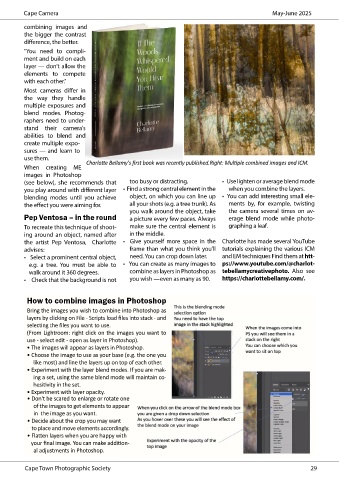
          use them.            Charlotte Bellamy's first book was recently published.Right: Multiple combined images and ICM.
          When creating ME
          images in Photoshop
          (see below), she recommends that     too busy or distracting.        •   Use lighten or average blend mode
          you play around with different layer   •  Find a strong central element in the   when you combine the layers.
          blending modes until you achieve     object, on which you can line up  •  You can add interesting small ele-
          the effect you were aiming for.      all your shots (e.g. a tree trunk). As   ments by, for example, twisting
                                               you walk around the object, take   the camera several times on av-
          Pep Ventosa – in the round           a picture every few paces. Always   erage blend mode while photo-
          To recreate this technique of shoot-  make sure the central element is   graphing a leaf.
          ing around an object, named after    in the middle.
          the artist Pep  Ventosa,  Charlotte  •    Give  yourself  more  space  in  the  Charlotte has made several YouTube
          advises:                             frame than what you think you’ll  tutorials explaining the various ICM
          •   Select a prominent central object,   need. You can crop down later.    and EM techniques Find them at htt-
           e.g. a tree.  You must be able to  •   You can create as many images to  ps://www.youtube.com/@charlot-
           walk around it 360 degrees.         combine as layers in Photoshop as  tebellamycreativephoto.  Also  see
          •    Check that the background is not   you wish —even as many as 90.  https://charlottebellamy.com/.


          How to combine images in Photoshop
          Bring the images you wish to combine into Photoshop as
          layers by clicking on File - Scripts load files into stack - and
          selecting the files you want to use.
          (From Lightroom: right click on the images you want to
          use - select edit - open as layer in Photoshop).
          • The images will appear as layers in Photoshop.
          • Choose the image to use as your base (e.g. the one you
             like most) and line the layers up on top of each other.
          • Experiment with the layer blend modes. If you are mak-
             ing a set, using the same blend mode will maintain co-
             hesitivity in the set.
          • Experiment with layer opacity.
           • Don't be scared to enlarge or rotate one
             of the images to get elements to appear
             in  the image as you want.
           • Decide about the crop you may want
               to place and move elements accordingly.
           • Flatten layers when you are happy with
              your final image. You can make addition-
             al adjustments in Photoshop.


          Cape Town Photographic Society                                                                                                                                                                                                                  29

